Why holiday hours matter
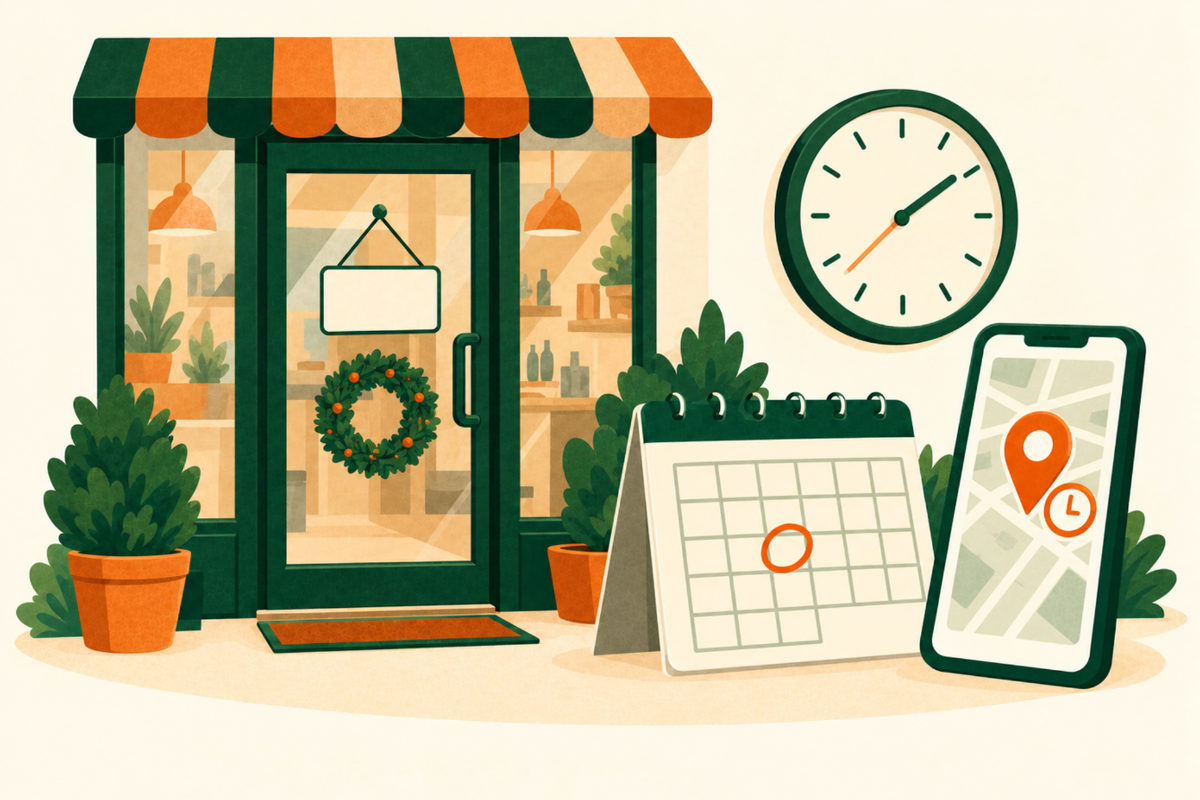
Wrong hours cost you twice: the customer who drives over to a closed door, and the one who stays home because Google said you were closed when you were open. Google’s own advice for local ranking lists your business hours, including special hours, among the details to keep complete, and warns that a profile with inaccurate information might not show up for relevant searches in your area.
Holidays are also when people search for “open now”, so a confirmed holiday schedule can bring visits your competitors miss.
How to set special hours
Google’s steps, from your Business Profile:
- Select Edit profile, then Hours
- Next to Special hours, select the edit icon
- Pick a date: a suggested holiday, a date you already set or a custom date
- If you’re open, clear the Closed box and enter your hours; if you’re closed, leave it checked
- Select Save
Confirm holidays even when nothing changes
Google recommends confirming your hours for official holidays even when they match your regular hours, because it makes clear to customers that your hours are accurate. A customer who sees confirmed hours on Thanksgiving morning is more likely to drive over.
One setting has to be right first: special hours only show when your business hours are set to “Open with main hours”.
Get your regular hours right
Special hours sit on top of your regular hours, so check those too. In Edit profile, Hours, choose “Open with main hours”, tick each day you’re open and set the times. You can add a second set of hours for one day, for example if you close for a break, or choose “Open 24 hours”.
Google’s guidelines ask for your regular customer-facing hours. If some services keep different times, such as delivery or takeout, add them under More hours instead of changing your main hours.
Google gives senior hours and delivery or takeout hours as examples. A restaurant that stops delivery at 9 but keeps the dining room open until 10 should show both, not pick one.
Special hours or “temporarily closed”?
Use special hours for short changes: a holiday, a staff day, closing early for a storm. For longer closures, Google’s help pages say to mark the business temporarily closed; they put the line at about a week. Seasonal businesses follow the same rule: Google’s guidelines say to mark the business temporarily closed in the off-season and set regular hours again when you reopen.
Don’t choose “permanently closed” for a break. It is for businesses that have closed for good.
Change your hours everywhere on the same day
Customers check more than Google. When you set holiday hours, update the other places people look so nothing contradicts your profile:
- Your website’s header, contact page and footer
- Your phone greeting and voicemail
- A sign on the door and a note at the counter
- Apple Maps, Yelp, Facebook and booking tools you use
- A Google post about the holiday, if you’re running a special
Plan the whole season at once
You don’t have to wait for each holiday. Sit down once in November and set every date through New Year’s Day: Thanksgiving, the day after, Christmas Eve, Christmas Day, New Year’s Eve and New Year’s Day. Then put a reminder in your calendar for the spring and summer holidays.
A holiday hours note you can adapt
For a hypothetical bakery. Use your own dates and hours.
Example website banner
Holiday hours at Maple Street Bakery
Thanksgiving: closed. Friday after Thanksgiving: 8 am to 2 pm. Christmas Eve: 7 am to noon. Christmas Day: closed. Pie orders for pickup: call (555) 010-0194.
Put the same hours on GoogleExample wording to adapt; this is not a live business enquiry.
Your checklist
Use this while reviewing the website. Your progress is not saved or sent.
Questions to work through
How do I add holiday hours to my Google Business Profile?
Go to your Business Profile, select Edit profile, then Hours. Next to Special hours, select edit, choose the date, set your hours or leave Closed checked, and save.
Why aren’t my special hours showing on Google?
Special hours only appear when your business hours are set to “Open with main hours”. Check that setting first, then the date you entered.
Should I set holiday hours if I’m open as usual?
Yes. Google recommends confirming your hours for official holidays even when they match your regular hours, so customers can see they’re accurate.
When should I mark my business temporarily closed?
For closures longer than about a week, for an unknown period, or during the off-season if your business is seasonal. For a holiday or a short closure, use special hours.
Can I set holiday hours in advance?
Yes. You can add special hours for any future date, so you can set the whole holiday season in one sitting.
Sources and further reading
Use the original guidance alongside this planning article. The examples here are adaptable starting points, not claims about your business.
- Google Business Profile Help: How to set Special hours
- Google Business Profile Help: Edit your business hours
- Google Business Profile Help: Mark your business as closed
- Google Business Profile Help: Guidelines for representing your business on Google
- Google Business Profile Help: Tips to improve your local ranking on Google
- Venant Studio: How to set up your Google Business Profile, step by step
- Venant Studio: Why isn’t my business showing up on Google Maps?